Your Kindle highlights are readable in your reading apps and on a web page at Amazon. Neither one is a file you own. If your notes live in an Obsidian vault, the passage you underlined last month is sitting outside the system where you actually think.
Getting it out is not one step. You need a way to pull the highlights off
Amazon, and a way to put them into your vault without a new copy appearing
every time you sync. This guide covers both, using a Kindle Notebook sync or a
My Clippings.txt upload for the first part, and either a Markdown download or
the Acorny Obsidian plugin for the second.
What Amazon actually gives you
Amazon offers two access points, and both stop short of a usable file.
The Kindle Notebook page at read.amazon.com/notebook shows highlights for
every book in your library, grouped by title, with notes and location labels.
It is the complete, current version of your highlights, and it is HTML behind a
login with no export button anywhere on it.
My Clippings.txt on the device is a real file you can copy over USB, which
sounds like the answer until you open it. Every highlight from every book is
appended to one plain text document, separated by a line of dashes, in the
order you made them. Nothing marks where one book ends and the next begins, and
nothing records which entries you copied the last time around.
Both paths leave you with text a person can read and a vault cannot organize.
Step 1: Get the highlights out of Kindle
Pick the route that matches where your highlights are. If you read on a Kindle app or across several devices, the Notebook page is the more complete source. If you have an older device with years of clippings on it, the file is worth uploading once.
Option A: Sync your Kindle Notebook from the browser
This route reads the same page you would read yourself, in your own browser session.
- Install the Acorny browser extension and sign in to your Acorny account.
- Open
read.amazon.com/notebookin the same browser and sign in to Amazon. - With the Kindle Notebook tab active, open the Acorny extension popup.
- Click Sync Kindle Highlights.
- On first use, approve access to the Kindle Notebook page and Amazon's sign in page. If you are prompted to sign in to Amazon, keep that tab open until the sync finishes.
You get book titles, authors, highlight text, your notes, and Kindle location labels. The sync is manual and starts only when you click the button, so nothing runs against your Amazon account in the background. Acorny never sees your Amazon password or cookies; it reads the page your logged in browser already renders.
Option B: Upload My Clippings.txt from the device
This route works offline and captures highlights from books that are no longer in your cloud library.
- Connect the Kindle to your computer with a USB cable.
- Open the Kindle's
documentsfolder and copyMy Clippings.txtto your computer. - In Acorny, open Import, choose Upload File, and set the source type to Kindle My Clippings.txt or leave it on auto detect.
- Upload the file, check the preview, then choose Confirm import.
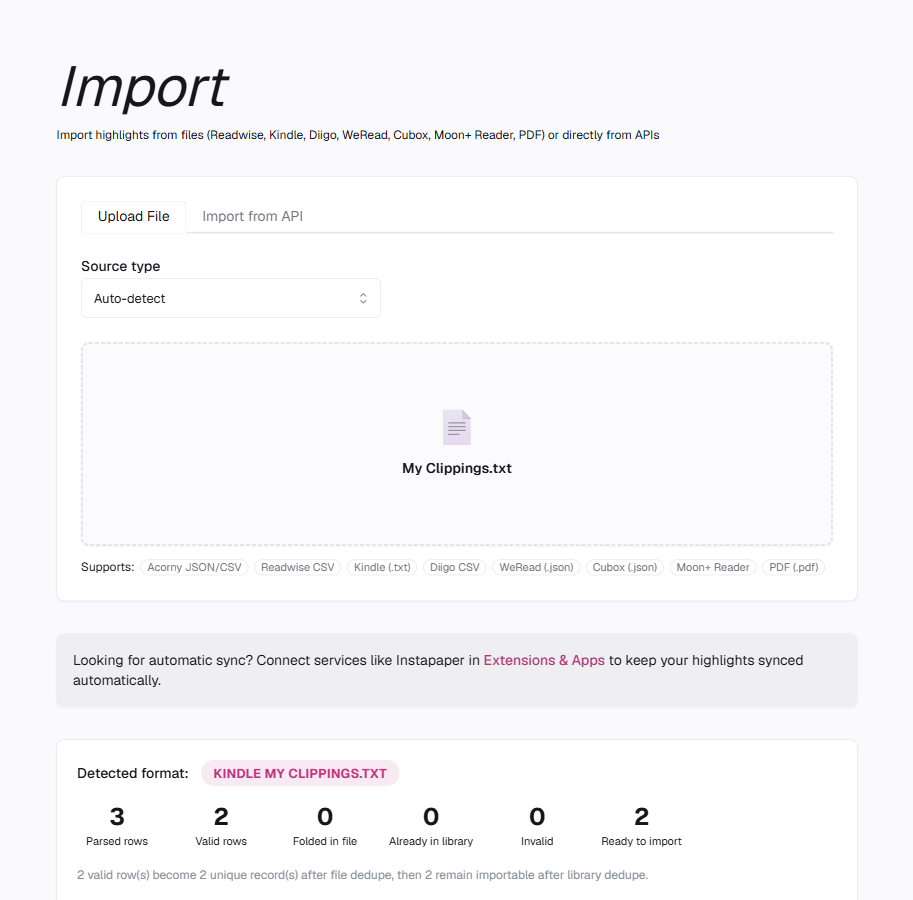
The preview reports the detected format and how many rows survive deduplication before you commit to the import.
Highlight text, book title, author, the location or page label, and the date added all come across. Notes transfer when they can be matched to a nearby highlight, which is how the file format stores them.
The preview is worth reading rather than clicking past. A clippings file records bookmarks and duplicate passages alongside real highlights, so the number of rows parsed is usually larger than the number worth importing.
One detail matters more than it looks: copy the file, do not edit it. Opening
My Clippings.txt in a word processor and saving it can change the encoding
and break the separator lines the parser depends on. Keep it plain text and
UTF-8.
What does not come across
Neither route gives you cover images, the book files themselves, reading progress, Kindle collections, or cloud library metadata. You are exporting highlights and notes, not cloning your library.
Step 2: Decide what "to Markdown" means for you
There are two honest answers to "export to Markdown," and they solve different problems.
| You want | Use | What you get | Plan |
|---|---|---|---|
| A file to keep, archive, or process with a script | Markdown download | One file, generated on demand, disconnected from Acorny after download | Any plan, including free |
| Highlights in your vault, kept current as you read | Obsidian plugin | One note per source, updated in place on every sync | Pro |
The download is the right choice for a backup or a one time migration into a different tool. The plugin is the right choice if you want the highlights to show up in your daily notes, backlinks, and search without you thinking about it. Nothing stops you from using both.
Worth knowing before you start: the plugin reads from Acorny's export feed, which is a Pro feature, so the export token it needs is only available on a Pro plan. The Markdown download in the next section is not gated, so a free account can still get every highlight out as a file. Pricing is on the plans page.
Step 3a: Download a Markdown file
In Acorny, open Extensions & Apps and find the Export section. Choose Markdown and the file downloads. JSON and CSV are there too if you are feeding a script rather than a note app.
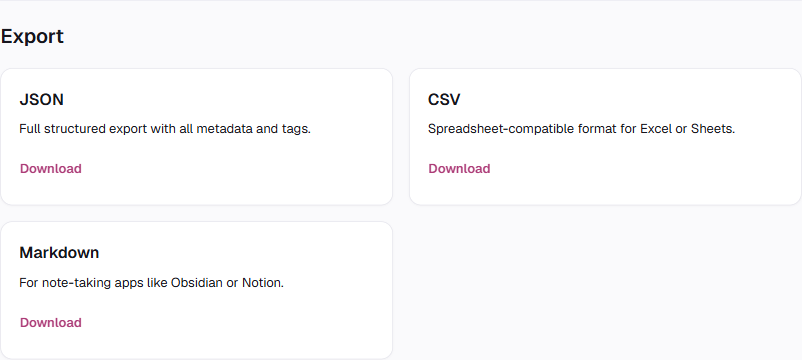
All three download formats are available on any plan, including free.
This is a snapshot. Run it again next month and you get a new file containing everything, including what you already have. That is fine for archiving and awkward for a vault, which is what the plugin exists to fix.
Step 3b: Sync into an Obsidian vault
The Acorny Sync plugin pulls from a read only export feed and writes Markdown notes into a folder you choose.
- In Acorny, go to Settings and find Export tokens. On a free plan this
section shows an upgrade prompt instead of the token controls, since the feed
the plugin reads is a Pro feature. On Pro, create a token, name it something
like
Obsidian, and copy it right away. It starts withacornyexp_and is shown only once. The token can read your highlights and cannot write anything back to Acorny or change your account. - In Obsidian, open Settings then Community plugins, turn off Restricted mode if it is on, browse for Acorny Sync, install it, and enable it.
- Open the plugin's settings and paste the token into Export token. Set
Folder to wherever the notes should live; the default is
Acorny. Sync on startup and Auto-sync interval are optional, and an interval of0turns off polling so syncing only happens when you ask for it. - Run Acorny: Sync now from the command palette, or click the ribbon icon.
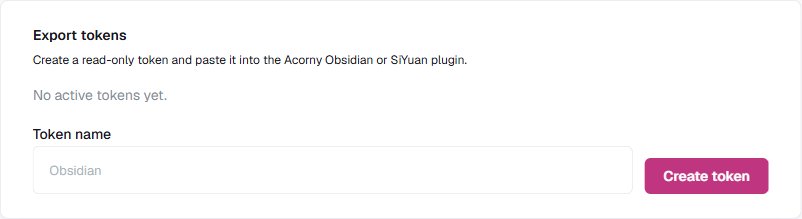
The token is read only, and the same one works for the SiYuan plugin.
Only one sync runs at a time. Triggering another while one is in progress skips it rather than queuing it, so an impatient double click cannot start two writes into the same folder.
A synced note looks like this:
---
title: Thinking, Fast and Slow
author: Daniel Kahneman
tags:
  - psychology
acorny-source-id: cmd8x2k9p0001
---

## Highlights

- The confidence that individuals have in their beliefs depends mostly on the quality of the story they can tell about what they see, even if they see little. ^acorny-cmd8x2k9p0007
    - note: Explains why thin evidence still produces strong conviction.
Each source gets one note, with ordinary frontmatter, a plain bullet list under
## Highlights, and your own note nested under the highlight it belongs to.
None of it uses custom syntax, so Dataview queries and tag search treat these
like any other note you wrote yourself.
Why a second sync does not overwrite your notes
Look at the end of the highlight line in that example: ^acorny-cmd8x2k9p0007.
That is an Obsidian block id, and it is derived from the highlight's id in
Acorny. Before writing anything, the plugin reads the note that already exists
and collects the block ids inside it. Highlights whose ids are already present
are skipped. New ones are appended to the end of the ## Highlights section.
The consequence is that everything you added stays. Write a paragraph under the frontmatter, add a section below the highlights, link a highlight into a permanent note, reorder the list. The next sync appends new items and leaves your work alone.
Note identity is anchored on the acorny-source-id in the frontmatter, not on
the filename. Rename the note to something that fits your vault, or rename the
book in Acorny, and the plugin still finds the same note instead of creating a
second one. Syncing is also incremental after the first run: later syncs fetch
only highlights that are new since the last one.
Two practical cautions. The token lives in your vault at
.obsidian/plugins/acorny-sync/data.json, so do not publish that folder or
sync it to a public repository. And because block ids are what protect your
edits, deleting the ^acorny-… suffix from a line will cause that highlight to
be appended again on the next sync.
Handle duplicates before they spread
Kindle highlights duplicate easily. Sync the Notebook page after uploading
My Clippings.txt from the same device and some passages arrive twice, because
the two sources describe them differently. Acorny tries to avoid this using the
source and location data available in each import, but the clippings file gives
it less to work with than the Notebook page does.
Clean this up in Acorny rather than in your vault. Duplicates removed at the source stay removed on every future sync, while duplicates deleted from a note come back the next time the plugin runs, since removing the line removes the block id that was suppressing it.
If you are importing years of Kindle history, import once, check the result, and then settle on a single route going forward.
After the highlights land in your vault
Highlights in your vault are searchable and linkable, which is more than Amazon's notebook page ever offered. They are also a larger pile of text you have already read once. The passages worth keeping need a second pass, where you turn them into something you can retrieve without reading the note first. That is what active recall cards are for, and Acorny can review them on the same highlights the plugin is syncing.
If you are coming from another highlight service, the same Kindle setup applies after you switch from Readwise, and the full list of import and export paths covers the other sources you may be carrying. If you would rather build your own sync, the read only export feed the plugin uses is documented for developers.
Start with one book
Do not migrate your whole Kindle library on the first attempt. Pick one book you have finished and highlighted well.
Sync it into Acorny with whichever route matches your reading setup, install the plugin, and run one sync. Open the note, add a sentence of your own under the frontmatter, then run the sync again and confirm your sentence is still there. Once you have seen your own writing survive a sync, turning on the startup trigger for the rest of the library is an easy call.
The Acorny quick start walks through capture and review if you are setting up an account for the first time. When you are ready to run it on real books, create an account and sync your first one.